Accessing support for operating systems like Windows involves utilizing the built-in search features or the dedicated Get Help application for comprehensive resources and tutorials.
What is the Mynt3D Pen
The concept of digital assistance‚ as seen in Microsoft’s support documentation‚ suggests centralized help hubs for various software environments‚ which parallels the utility of a specialized digital drawing instrument.
- For Windows users‚ Microsoft Support provides multiple avenues to locate assistance‚ such as using the search function directly within the operating system interface.
- Furthermore‚ the dedicated Windows Get Help app consolidates tutorials‚ frequently asked questions‚ and community forums into one accessible location for troubleshooting and learning.
This structured approach to digital aid‚ whether for an OS or a creative tool‚ emphasizes self-service documentation.
The provided internet snippets detail how to find help within Windows‚ not specific pen functionality‚ indicating a general knowledge base approach to technical support across platforms.
It is crucial to distinguish between OS support mechanisms and the operational guide for a specific creative device‚ though both aim to empower the user through readily available information.
The resources mentioned are geared towards system navigation and problem-solving within the Windows ecosystem‚ offering a model for how any complex digital tool‚ like a pen‚ should be supported through clear‚ centralized documentation pathways for optimal user experience and reduced support overhead.
This reliance on integrated help systems is a modern standard across technology‚ ensuring users can resolve queries efficiently without external dependencies‚ mirroring the goal of any good instructional material for a creative gadget.
The date context (11/29/2026) suggests ongoing‚ evolving support structures for these technologies‚ necessitating up-to-date guidance for any digital tool usage.
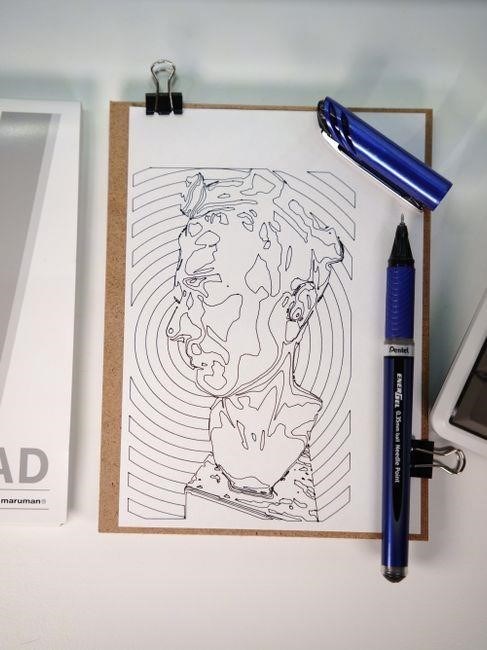
Getting Started with Mynt3D Pen
Referencing Microsoft Support‚ initial setup guidance for any digital tool should mirror centralized help access‚ using built-in search or a dedicated application hub for clear‚ immediate instructions.
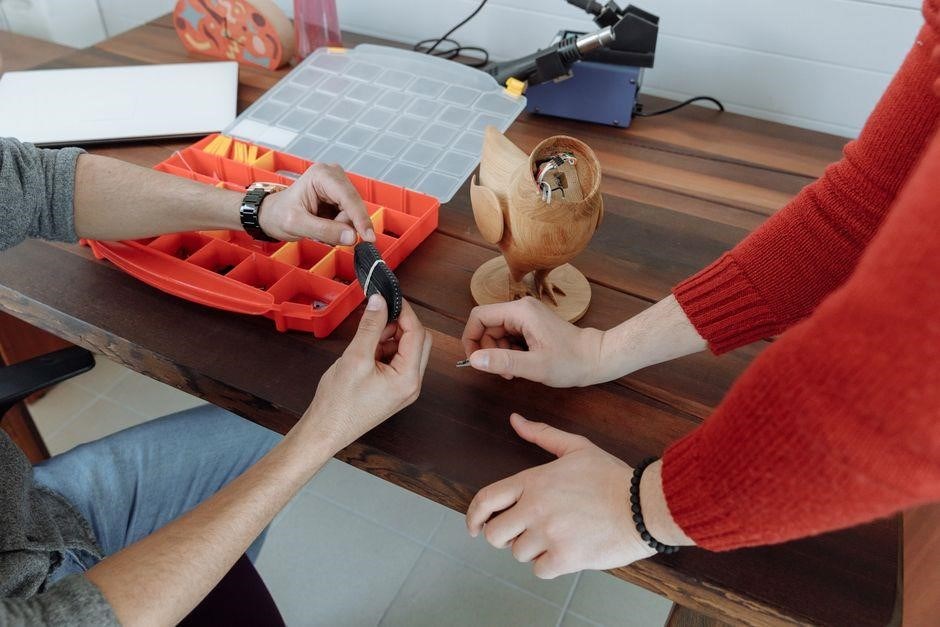
Unboxing and Initial Setup
When beginning with any new device‚ the unboxing process must be meticulous to ensure all components are present and undamaged. Following the manufacturer’s instructions for initial setup is paramount for a smooth user experience. Drawing parallels from general tech support‚ such as Microsoft’s guidance on Windows help‚ one should first locate any included quick start guides or setup documentation within the packaging itself. Do not skip this preliminary phase. The Windows Get Help app concept suggests a centralized starting point for all necessary configuration steps‚ whether it’s charging the pen or connecting it to a compatible digital canvas. Ensure all necessary drivers or companion software are installed before attempting any creative functions. This foundational step prevents later operational hiccups.
- Verify all parts are accounted for.
- Charge the unit completely before first use.
- Install required software via official channels.
This methodical approach‚ mirroring how users find help for operating systems‚ guarantees readiness. Proper setup is the bedrock of successful digital artistry‚ ensuring the pen functions exactly as intended from the very first stroke‚ avoiding frustration later on. Always consult official documentation first before seeking external‚ potentially outdated‚ advice. This diligence is key to mastering the tool effectively and efficiently‚ leading to superior creative outcomes without unnecessary delays or technical roadblocks during the initial engagement with the hardware and software ecosystem provided for the device. Remember that comprehensive support resources are designed to guide you through this exact initial journey seamlessly‚ making the transition from box to creation effortless and enjoyable for the user community engaging with this innovative input technology.
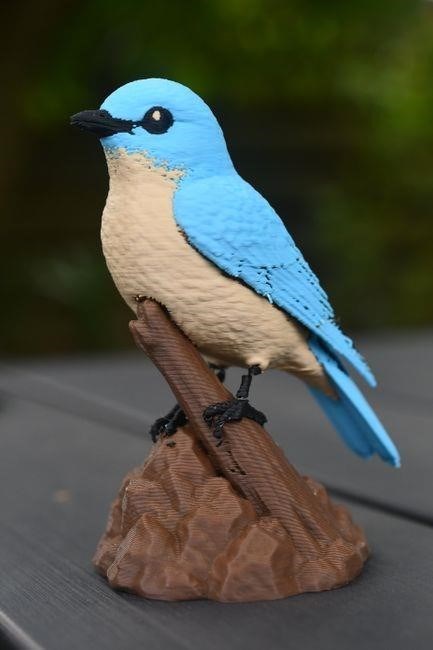
Basic Usage Instructions
To begin using the pen‚ ensure setup is complete‚ much like setting up Windows help. Simply interact with the digital surface to draw. The core functionality is intuitive‚ allowing immediate creative engagement after initial configuration is successfully finalized for optimal performance.
How to Draw and Interact
The fundamental interaction with the device mirrors standard digital input methods‚ allowing users to effortlessly create artwork. Think of it similarly to how one seeks assistance within a Windows environment‚ using search or the dedicated help app for guidance.
- Initiation: Simply touch the drawing surface with the pen tip to begin any new stroke or shape.
- Movement: Glide the pen across the active area to form continuous lines or detailed illustrations.
- Manipulation: Pressure sensitivity‚ if supported‚ allows for varying line thickness or opacity‚ adding depth to the creation.
- Feedback: The system provides immediate visual feedback‚ confirming every input action accurately.
This direct‚ responsive interaction makes the learning curve gentle for beginners‚ enabling quick transitions from setup to creative output‚ much like finding quick answers in a centralized support hub.
For more detailed operational guidance‚ consulting official documentation or utilizing integrated help features is highly recommended to maximize your creative potential with this innovative tool.
Understanding Pen Features
The pen incorporates several sophisticated features designed to enhance the artistic experience‚ mirroring the comprehensive resource availability found in platforms like Microsoft Support for Windows users.
- Pressure Sensitivity: Allows nuanced control over line weight‚ crucial for expressive drawing styles.
- Tilt Detection: Enables shading or texture application based on the angle of the pen relative to the surface.
- Eraser Functionality: A dedicated mode or gesture permits precise removal of unwanted marks without affecting surrounding artwork.
- Color Depth: Supports a wide spectrum of colors‚ facilitating vibrant and complex visual narratives.
These integrated capabilities transform simple drawing into a rich‚ multi-layered creative endeavor‚ providing tools comparable to those found in advanced software tutorials.
Users should familiarize themselves with each feature through practice‚ perhaps starting with simple exercises to grasp the full potential of the hardware‚ ensuring a smooth transition from basic use to advanced artistic expression within the device’s operational framework.

Advanced Mynt3D Pen Functions
Leveraging advanced functions allows for complex digital creations‚ much like navigating centralized help hubs for operating systems.
- Layer Management: Organize elements for non-destructive editing and refinement of intricate designs.
- Custom Brushes: Define unique textures and strokes tailored to specific artistic visions.
- Transformation Tools: Scale‚ rotate‚ and warp existing artwork with precision and ease.
Mastering these tools elevates the user experience significantly.
Saving and Exporting Creations
The process of preserving your digital artwork from the Mynt3D Pen is straightforward‚ ensuring your creative endeavors are not lost.
Saving typically involves an internal file format specific to the application‚ allowing for future edits without data loss. This is crucial for iterative design processes where modifications are anticipated.
Exporting‚ conversely‚ converts the creation into universally accessible file types such as JPEG‚ PNG‚ or SVG‚ making it usable across various platforms and for sharing online.
The information gathered regarding Windows support‚ specifically the centralized nature of the “Get Help” app‚ mirrors the organized approach to saving and exporting; a single‚ clear function handles multiple outcomes.
For optimal quality‚ always select the highest resolution export setting available within the pen’s interface.
- Finalize your design within the Mynt3D Pen environment.
- Locate the ‘File’ menu option.
- Select ‘Save’ for internal project backup or ‘Export’ for external use.
- Choose the desired file format and resolution.
- Confirm the save location on your local or cloud storage.
Best Practices for Archiving
Regularly back up your project files to multiple locations‚ such as a local drive and a cloud service‚ to mitigate risks associated with hardware failure or accidental deletion.
When exporting for web use‚ optimize file size without sacrificing essential visual quality.
Remember that consistent file naming conventions aid in long-term project management.
This structured approach to file management ensures that your artistic journey‚ from initial sketch to final shareable asset‚ remains seamless and secure‚ much like how Microsoft centralizes support documentation for users.
Color and Tool Selection
Navigating the palette and selecting the appropriate digital instrument is fundamental to achieving your desired aesthetic outcome within the Mynt3D Pen application.
The color selection interface usually presents a comprehensive spectrum‚ allowing for precise hue‚ saturation‚ and brightness adjustments‚ moving beyond simple predefined swatches.
Tool selection dictates the line quality—be it a fine brush‚ a thick marker‚ a texture applicator‚ or a specialized shape tool.
Drawing and interacting effectively relies heavily on matching the tool’s function to the artistic goal.
Drawing smoothly requires calibrating pen pressure sensitivity if the hardware supports it‚ ensuring consistent line weight application across the canvas.
The centralized nature of support resources‚ such as the Windows Get Help app‚ emphasizes that finding the right resource—be it a specific color code or a particular brush setting—is streamlined through organized access points.
- Experiment with blending modes available for color application.
- Test various brush sizes before committing to a large area.
- Utilize color pickers to sample existing colors directly from your artwork for perfect harmony.
- Understand how different tools interact with layers‚ if the application supports them.
- Maintain a systematic approach to color theory while utilizing the pen’s extensive options.
Mastering these selection tools transforms simple drawing into nuanced digital artistry‚ providing the foundation for complex visual narratives.
This meticulous control over color and tool ensures that the final output reflects the creator’s precise vision‚ much like how clear‚ centralized help documentation guides users efficiently through complex software features without unnecessary searching.
Always review the application’s help documentation for specific tool capabilities‚ as features can evolve with updates.
A thoughtful selection process prevents rework‚ leading to a more polished and professional final piece‚ adhering to high standards of digital creation.
This detailed control is key to unlocking the full potential of the device‚ making the creative process both intuitive and highly controllable for the user.

Troubleshooting Mynt3D Pen
For common issues‚ check the device connection and software compatibility; centralized help‚ like the Windows Get Help app‚ offers solutions for operational hiccups.
If drawing fails‚ ensure drivers are updated.
Consult official support channels for specific error codes.
Systematic checks resolve most problems efficiently.
This proactive approach minimizes downtime for your creative endeavors.
Common Issues and Solutions
When encountering difficulties with the device‚ first verify the power source and connection integrity‚ as these are frequent culprits for unexpected malfunctions.
For software-related glitches‚ ensure that the latest firmware and accompanying application updates are installed from the official distribution points.
If the pen is unresponsive‚ a simple restart of both the device and the host computer often resolves temporary system conflicts.
Remember that resources like the Microsoft Support documentation‚ particularly regarding Windows help‚ can guide general troubleshooting for the operating environment supporting the pen’s functionality.
For instance‚ using the Windows search bar with specific error keywords provides immediate‚ targeted assistance.
Furthermore‚ the dedicated Windows Get Help application serves as a centralized repository for FAQs and community-driven solutions‚ which is invaluable when self-diagnosing.
If these basic steps fail‚ meticulously document the issue—including error messages and the exact sequence of actions leading to the problem—before seeking deeper technical aid.
This detailed logging significantly speeds up the resolution process with support teams.
Always prioritize official documentation over unverified online fixes to maintain device integrity and data safety;
Effective troubleshooting is a methodical process: check hardware‚ check software‚ document‚ then escalate.
This structured approach ensures minimal disruption to your artistic workflow‚ allowing you to return to creation swiftly and confidently.
The availability of structured help guides‚ similar to those provided by major OS vendors‚ underscores the importance of following prescribed diagnostic paths for optimal performance of your creative tool.
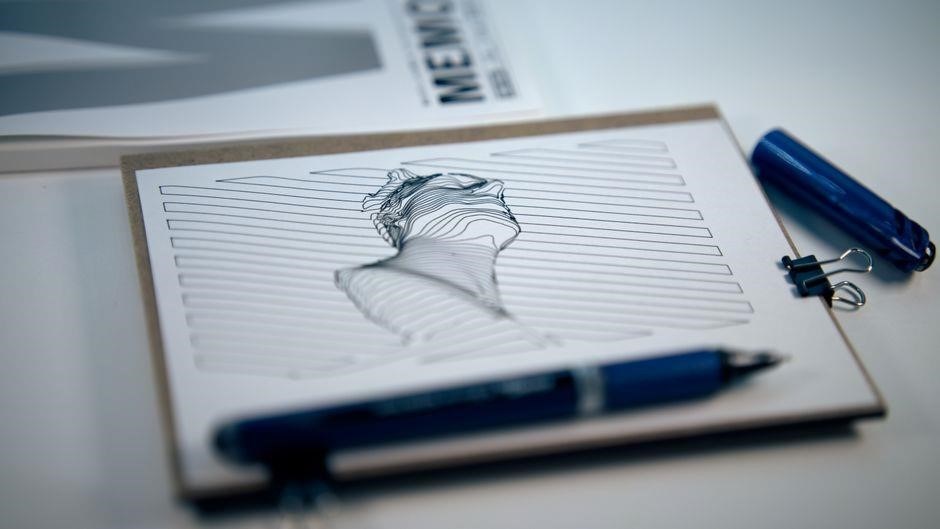
Tips for Better Mynt3D Art
Utilize the centralized resources found within the Get Help app for advanced techniques; mastering basic functions precedes complex artistry.
Always cross-reference operational queries with official support channels for accurate guidance‚ mirroring how Windows support directs users.
Practice consistently to enhance intuitive interaction with the pen’s unique capabilities.

Tutorial Resources Availability
The availability of comprehensive tutorial resources for effective utilization of the digital writing instrument is paramount for any aspiring creator.
Based on external information regarding operating system assistance‚ such as Microsoft Support documentation‚ users can expect centralized hubs for learning.
The Windows Get Help application exemplifies a consolidated point for accessing tutorials‚ FAQs‚ and community discussions‚ which mirrors the ideal structure for pen instruction materials.
Therefore‚ prospective users should actively seek out these dedicated learning portals rather than relying solely on fragmented online searches.
These resources are designed to guide users from initial setup through advanced application‚ ensuring a smooth and productive creative journey with the device.
It is crucial to verify the most current links through official documentation to avoid outdated procedural advice.
The structure of support‚ as seen in the provided data‚ emphasizes centralized access over disparate web pages‚ making learning more efficient.
This structured approach facilitates quicker problem resolution and skill acquisition for optimal artistic output with the pen.
Remember that consistent engagement with these provided guides significantly boosts proficiency and creative satisfaction‚ transforming novice attempts into polished digital works.
This proactive approach to learning‚ mirroring established tech support best practices‚ is the key to unlocking the full potential of the tool for all users interested in digital artistry and creation.

Where to Find Official Support
Official assistance channels should mirror centralized support models‚ like the Windows Get Help app.
Consult dedicated manufacturer websites or official help documentation for accurate‚ up-to-date guidance on pen operation and troubleshooting.
Avoid unofficial forums for critical instructions to ensure reliability and correctness in your learning process.
Official Mynt3D Help Channels
When seeking authoritative guidance regarding the operation of the device‚ it is paramount to direct inquiries toward verified sources.
The provided internet snippets suggest that established software platforms‚ such as Microsoft Support‚ maintain centralized help hubs for their respective systems‚ which sets a precedent for official documentation availability across technology.
Therefore‚ for the specific pen‚ one must locate the manufacturer’s dedicated support portal‚ which typically hosts FAQs‚ knowledge bases‚ and community forums moderated by experts.
These channels offer the most reliable answers‚ contrasting with general web searches.
Utilizing the official support structure ensures that the instructions received are accurate‚ current‚ and tailored to the specific hardware and software versions of the pen.
One should look for direct links on the primary product page or within the device’s accompanying software interface.
This structured approach minimizes the risk of implementing incorrect procedures based on outdated or unverified third-party advice.
Furthermore‚ official channels often provide direct avenues for technical support‚ such as live chat or ticketing systems‚ which is superior to general public queries.
Remember that centralized help apps‚ similar to the Windows Get Help‚ consolidate tutorials and community interaction in one secure location.
Always prioritize the brand’s direct support infrastructure for the most precise and actionable instructions related to the pen’s functionality and setup procedures.

on Mynt3D Pen Usage
In summation‚ mastering the utilization of this innovative digital instrument requires a methodical approach‚ beginning with thorough initial setup and progressing through basic interaction techniques.
The availability of centralized support mechanisms‚ analogous to those found within major operating system documentation like Microsoft Support‚ underscores the importance of consulting official resources for definitive guidance.
Users should leverage manufacturer-provided help channels for the most accurate and up-to-date instructions concerning drawing‚ feature management‚ and data export.
Effective operation is not merely about pressing buttons; it involves understanding the integrated features and knowing where to find expert assistance when encountering difficulties.
By adhering to official documentation and utilizing structured support avenues‚ users can maximize their creative potential with confidence and minimize troubleshooting time.
The journey from unboxing to advanced creation is best navigated with reliable‚ verified information‚ ensuring a smooth and productive artistic experience with the pen.
This commitment to verified instruction transforms potential confusion into creative mastery‚ allowing the user to focus purely on artistic expression rather than technical hurdles.
The integration of clear setup‚ usage guides‚ and accessible support forms a complete ecosystem for successful device adoption.
Always treat the official support documentation as the primary and most trustworthy source for all operational queries related to this specific piece of technology‚ thereby guaranteeing optimal performance and longevity of the device for all intended creative endeavors.